
A VPN changing your internet route does not change the saved location. Smart timing uses your saved coordinates and Windows timezone.
Before downloading
Night Light Early Access currently supports Windows 11 on a 64-bit computer. It requires Microsoft Edge WebView2 Runtime for its controls window. Most Windows 11 computers already include it.
- Save any important work before changing display settings.
- Download only from hasstechapi.com.
- Do not install a file with a different name, size, or checksum.
- On a school or workplace computer, follow the organization’s policy instead of trying to bypass it.
NightLightSetup-0.3.0-Early-Access.exeDownload the installer
- Select Download Early Access on this page.
- Your browser may warn that executable files can be harmful. Confirm that the address is hasstechapi.com and keep the file only if its name is exactly
NightLightSetup-0.3.0-Early-Access.exe. - Open your Downloads folder. Do not rename or modify the installer before checking it.
Verify the SHA-256 checksum
A checksum confirms that your downloaded bytes match the installer HassTech published. It does not replace a trusted publisher signature, but it can detect a damaged or substituted file.
- Open the Start menu, type PowerShell, and open Windows PowerShell. Administrator access is not required.
- Enter the command below. If you saved the file elsewhere, replace the path with its actual location.
Get-FileHash "$env:USERPROFILE\Downloads\NightLightSetup-0.3.0-Early-Access.exe" -Algorithm SHA256If that command is unavailable, use:
certutil -hashfile "$env:USERPROFILE\Downloads\NightLightSetup-0.3.0-Early-Access.exe" SHA256Compare the result character for character:
c93d030ff98a27e71cbff5496b1b7e15c14fe2d599b06cc9fd6a7c51d2f34633If it does not match, delete the installer and do not run it.
Understand the Windows warning
Because this build is unsigned, Windows may show Windows protected your PC and list the publisher as unknown.
- Confirm again that you downloaded the exact file from this website and that its checksum matches.
- If you accept the Early Access risk, select More info.
- Confirm the app name matches the filename above.
- Select Run anyway only if Windows offers it and this is your personal computer.
If Run anyway is absent, your device policy or Smart App Control may prohibit unsigned software. Stop there. Do not turn those protections off; wait for the signed release.
Install Night Light
- The window title is Night Light Early Access Setup. The welcome page explains the unsigned build and how updates preserve your preferences.
- Select Install. It installs for your Windows account and should not require administrator access.
- If WebView2 is missing, setup stops without replacing your current app and offers Microsoft’s official download page. Install WebView2, then run Night Light setup again.
- When installation completes, select Next to read the getting-started steps, then Close. Setup does not enable the filter or startup automatically.
An upgrade preserves your preferences, replaces the recognized current installation, repairs HassTech-owned shortcuts, and removes the superseded executable. Unknown or modified application files make setup stop instead of deleting them.
Open the controls
- Open Start and search for Night Light Controls.
- The premium controls open in the corner of your current display.
- Choose Manual to set warmth and dimming yourself, or choose Smart for gradual evening adjustments.
- Use Hold to see original to temporarily compare your unchanged display.
- The main switch turns the HT display filter on or off. Off always requests a neutral display.
Night Light does not advise changing medication and does not measure sleep, melatonin, or calibrated light at your eyes.
Pin the one-click moon
- Open Start and search for Night Light—not Night Light Controls.
- Right-click Night Light and select Pin to taskbar.
- Clicking the pinned moon once turns the Night Light filter on or off.
- Use the separate Night Light Controls Start entry whenever you want the full settings window.
If an older pin opens controls instead of toggling, unpin it, run the current installer again, and pin Night Light from Start.
Set up Smart Comfort
- Open Night Light Controls, then Schedule & preferences. If an older policy is retained, choose Review Smart Comfort without changing my current policy, preview the proposed schedule, then explicitly choose whether to use it.
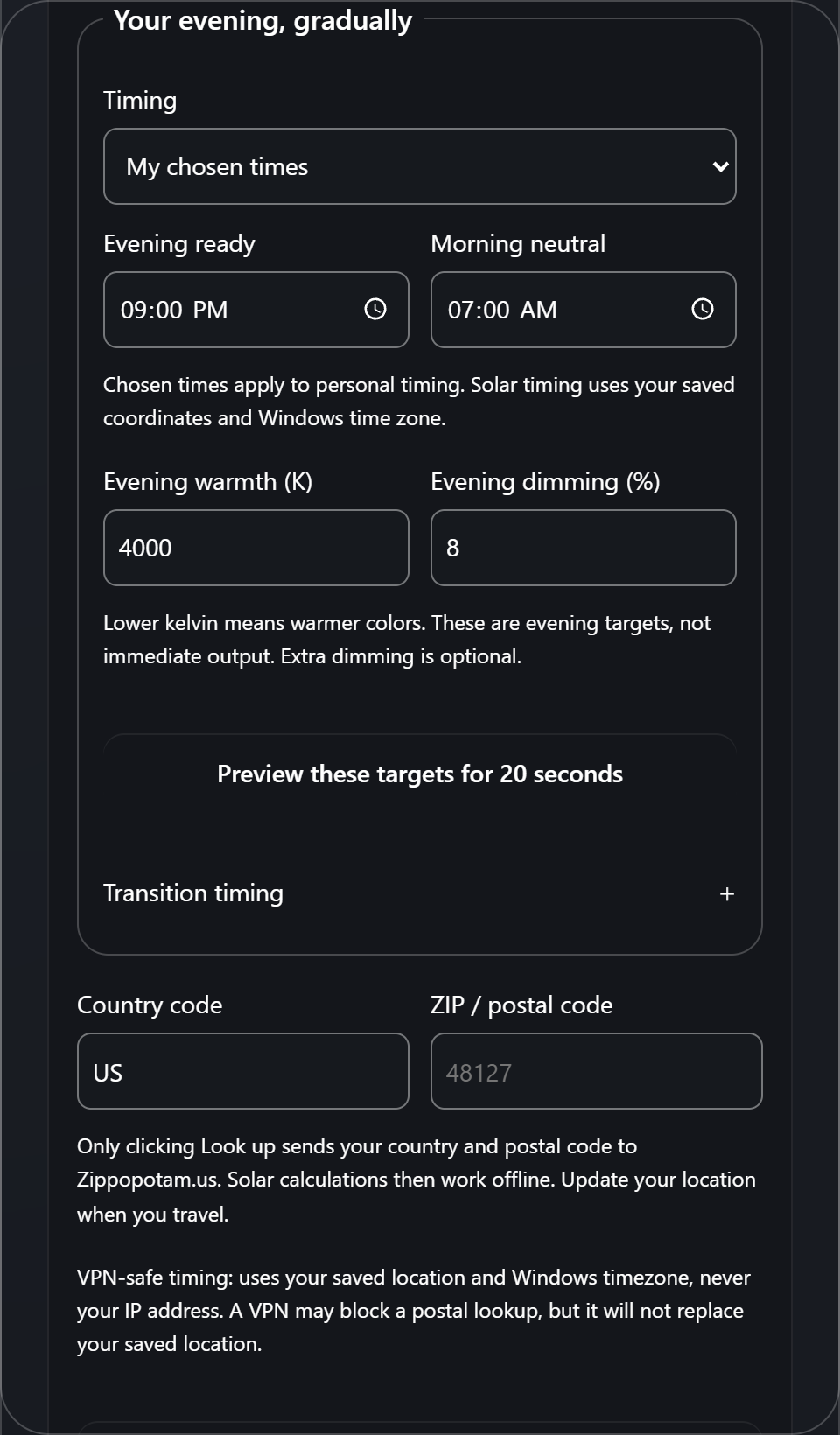
- Under Timing, choose My chosen times for a personal evening and morning schedule, or Sunset and sunrise for solar timing.
- For solar timing, enter your country and postal code, select Look up postal code, and review the location. This lookup contacts Zippopotam.us. Saved coordinates then support offline solar calculations.
- Choose evening warmth and optional dimming. Lower kelvin means warmer colors. Open Transition timing to adjust the lead times and choose Gradual or Extra gradual. These are evening targets, not immediate output.
- Optionally select Preview these targets for 20 seconds. This temporary comparison restores automatically; it does not save the targets.
- Select Save and enable Smart. Wait for Settings saved, then check the status at the top: a successful save does not itself prove Windows accepted the display adjustment.
- Use Pause 1 hour for a temporary break, Manual for direct control, or the main switch to turn off.
Your saved coordinates and Windows timezone determine solar timing—not your IP or VPN location. Update your saved location when you physically travel and confirm the Windows timezone. Longer transitions can feel gentler, but no setting guarantees imperceptible changes.
Update safely
- Return to this official page and compare the published version with your installed version.
- Download and verify the new installer exactly as above.
- Run the new installer. Night Light closes safely, returns the display to neutral, replaces its verified application files, and retains preferences.
- Reopen Night Light Controls and confirm your mode, location, and taskbar pin behavior.
Never install an “update” received through an unsolicited message or a different website.
Uninstall Night Light
- Turn Night Light off and close it from its controls or taskbar menu.
- Open Windows Settings → Apps → Installed apps.
- Find Night Light, open its menu, and select Uninstall.
- The uninstaller removes verified application files and HassTech-owned shortcuts/startup integration. It preserves preferences and unknown files rather than deleting them broadly.
If you want saved preferences removed too, delete them only after uninstalling and confirming you no longer need your Smart Mode setup. Early Access currently preserves them as a recovery safeguard.
Troubleshooting and recovery
The controls window is blank or does not open
Install or repair Microsoft Edge WebView2 Runtime from Microsoft, then restart Night Light. Version 0.2.0 and later include a mixed-DPI multi-monitor positioning correction. Version 0.3.0 moves the emergency reset shortcut to Ctrl+Alt+Shift+N so it no longer conflicts with Explorer and browser shortcuts, and reads the Windows Night Light state structurally rather than from a single byte, so an unfamiliar Windows build cannot leave the filter paused on an unknown state.
The screen does not visibly change
Check the status message in Night Light Controls. Windows Night Light or another color-management application may own the display transform. Turn off the conflicting effect yourself, then use Night Light’s retry control. The app does not silently overwrite an unknown external transform.
The display looks wrong
Click the pinned moon once to request Off, or open controls and turn the main switch off. If the controls are unavailable, close Night Light or sign out/restart Windows; normal shutdown requests a neutral display.
Smart Mode uses the wrong time
Confirm Windows date, time, timezone, and the saved Night Light location. VPNs do not choose the schedule. Update the saved location after physical travel.
Windows will not allow installation
Do not disable security protections. This computer may prohibit unsigned applications. Wait for the signed release or use a personal test computer whose policy permits Early Access software.
When reporting a problem, include the Night Light version, Windows version, what you expected, what happened, and whether multiple monitors, HDR, display scaling, Windows Night Light, or a VPN were active. Do not send private configuration files or credentials.